How to Pair Firestick Remote to Control TV Volume?
By Robert Jones · 2022-06-01
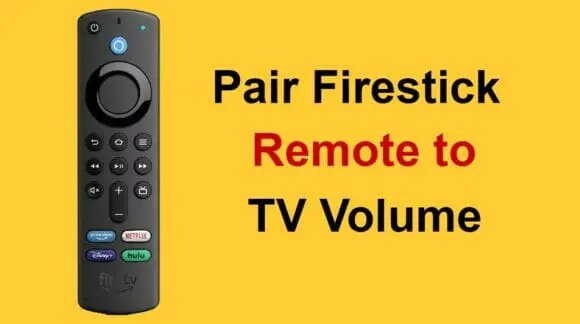
Are you tired of juggling two remotes just to sort the TV volume when using your Firestick? I’ve seen this countless times. Let’s get that Firestick remote talking to your TV properly and make life a whole lot easier for your streaming sessions.
Right then, let's be honest, how many of you have sat there, Firestick remote in one hand, TV remote in the other, just to turn the volume up a notch or down for a loud advert? It’s a proper faff, isn't it? Drives me mad, and I’ve been mucking about with home cinema kit for more years than I care to admit. It’s one of those little frustrations that people just put up with, thinking it’s how it is. But it shouldn't be. Your Firestick remote, that trusty little slab of plastic, can absolutely take charge of your TV's volume. No need for the remote juggle. Honestly, it makes life so much easier when you're binging a series or catching up on a film. Let’s get it sorted. **Quick Verdict:** **_Get your Firestick remote controlling TV volume for a much smoother streaming experience._** ### Who This Is For * Anyone who's sick of hunting for two remotes just to change the sound. * Folks with a slightly older TV where CEC (that HDMI control stuff) is a bit hit-and-miss. * Brand new Firestick owners wondering why their fancy new remote isn't doing everything. * If you've recently reset your Firestick or TV and lost your precious volume control. * Anyone who just wants a bit of peace and quiet from the clatter of multiple remotes on the coffee table. ### Who Should Skip It * If your Firestick remote already handles your TV volume perfectly, you're golden. Don't fix what ain't broke! * If you've got a very specific, perhaps external sound system (like an AV receiver) that you prefer to control separately, fair enough. * Those who haven't got a Firestick – obviously, this won't apply to you.  *How to Pair Firestick Remote to Control TV Volume? — tested in the SpeakersMag workshop.* ## Why Isn't My Firestick Remote Already Sorting The Volume? Before we dive into the nitty-gritty of how to fix it, let's quickly talk about *why* this is even a thing. Your Firestick remote is designed, first and foremost, to boss the Firestick itself around. It talks directly to that little dongle or box plugged into your TV. Now, when it comes to controlling the TV, that’s where things get a bit more involved. Most modern TVs and connected devices use something called HDMI CEC – that stands for Consumer Electronics Control. It’s basically a fancy handshake protocol that lets all your HDMI-connected gadgets chat to each other. So, in an ideal world, your Firestick sends a "turn the volume up" command, and your TV hears it via the HDMI cable and obliges. But, and it’s a big but, CEC can be a right picky beggar. Different TV brands call it different things (Anynet+ for Samsung, Bravia Sync for Sony, Viera Link for Panasonic, SimpLink for LG, etc.). Sometimes it's switched off by default, sometimes it's just a bit flaky, or the TV’s implementation isn't quite up to scratch. I’ve seen it hundreds of times; one day it works, the next it doesn’t, and no one's touched a thing. It’s enough to make you scratch your head. Then there's the other method, which is what the newer Firestick remotes (like the 3rd Gen Alexa Voice Remote or the Fire TV Stick 4K Max remote) primarily use for volume: infrared, or IR. Yep, just like your old TV remote. These newer Firestick remotes have an IR blaster built in, so they can directly send the "volume up" or "volume down" signal to your TV, bypassing CEC altogether. This is usually the most reliable way to get it sorted, and it’s what we’ll focus on setting up properly. ## Getting Your Firestick Remote and TV on Speaking Terms: The Setup Right, enough chinwagging, let’s get down to business. This process is pretty straightforward, but you’ve got to be in the right menu on your Firestick. Don't go rummaging around your TV settings just yet, all the magic happens on the Firestick itself. ### Step 1: Head to the Firestick Settings First things first, grab your Firestick remote – the one you want to *actually* use for everything. Navigate to the Firestick home screen. You'll want to scroll right along the top menu until you see the gear icon. That’s your Settings. Click into that. ### Step 2: Find "Equipment Control" Once you’re in Settings, scroll down and look for an option called "Equipment Control." It might sound a bit techy, but it’s exactly what we need. This is where your Firestick learns about all the other kit you’ve got plugged in. ### Step 3: Manage TV or Soundbar Inside "Equipment Control," you’ll probably see a few options. We’re interested in "Manage Equipment." Click on that. Now, you’ll typically see options for "TV" and "Soundbar." If you’re just controlling your TV’s built-in speakers, choose "TV." If you have a separate soundbar you want the Firestick remote to control, then select "Soundbar" instead. The process is pretty much identical for both. ### Step 4: The IR Profile Test Once you’ve selected "TV" (or "Soundbar"), the Firestick will usually ask, "What brand is your TV?" It’ll give you a list of common manufacturers – Sony, Samsung, LG, Panasonic, Philips, Toshiba, etc. Select your TV's brand from the list. If you don't see it, there’s usually an "Other" option. Choose that, and the Firestick will then try to figure it out. Now, here’s the clever bit. The Firestick will then ask you to perform a test. It’ll tell you to point your Firestick remote at your TV and press the volume up button. Listen carefully! It’s trying to send an IR signal to your TV. If your TV’s volume goes up, great! It’s found the right IR profile. Confirm that it worked, and you’re pretty much done. The Firestick has learned your TV's volume codes. ### What if the Volume Test Fails? Don't panic if the volume doesn't budge on the first go. This is fairly common, especially with less common TV brands or older models. The Firestick will usually ask if the test worked. If it didn't, select "No." It will then try a different IR profile. It’ll say something like, "Trying the next profile. Please try pressing the volume up button again." Keep going through this process. Point the remote, press volume up, see if the TV responds. If it does, confirm it worked. If not, select "No" and let it try the next one. You might have to do this a few times, so be patient. I've had to go through five or six profiles for some really obscure sets in the workshop before finding the right one. ### Important Check: HDMI CEC on Your TV Even though we're primarily using IR for volume with the newer remotes, it's still a good shout to make sure HDMI CEC is enabled on your TV. This isn't just for volume; it helps with things like automatically switching inputs or turning devices on/off when you power up your Firestick. Each TV brand hides this setting in a different spot, but here are the common names to look out for: * **Samsung:** Anynet+ * **Sony:** Bravia Sync * **LG:** SimpLink * **Panasonic:** Viera Link * **Philips:** EasyLink * **Hisense:** Anyview Cast / CEC * **TCL:** T-Link / CEC Go into your TV's *own* settings menu (not the Firestick's) and have a good rummage around the System, General, or Connection settings. Look for any of those terms and make sure CEC is enabled. It usually is by default these days, but a quick check never hurts. I can't tell you how many support calls I've had where it turned out to be a simple tick-box in the TV menu. ## Troubleshooting: "It's Still Not Working, Robert!" Alright, so you've tried the setup, you've gone through the IR profiles, and still, your TV’s volume isn't responding to your Firestick remote. Don't throw it out the window just yet. Here are a few things we can try. ### 1. Power Cycle Everything It sounds a bit cliché, but seriously, turn everything off at the wall. Unplug your TV, unplug your Firestick. Leave them for a good five minutes. Then plug the TV back in, then the Firestick. Sometimes devices just need a proper reboot to clear out any digital cobwebs. This can often kick CEC back into life if it was being a bit stubborn. ### 2. Check Your Remote's Batteries Simple, I know, but often overlooked. Weak batteries can cause all sorts of flaky behaviour, including unreliable IR signals. Pop in a fresh pair of AAA batteries and try the setup again. ### 3. Ensure Line of Sight for IR If you have a soundbar or another piece of kit sitting right in front of your TV’s IR receiver, that could be blocking the signal. Make sure there’s a clear path from your Firestick remote to your TV’s IR sensor. On most TVs, this is usually a small, dark window often found at the bottom edge or corner of the screen bezel. ### 4. Try a Different HDMI Port Occasionally, a particular HDMI port on your TV might have a dodgy CEC connection or just be less cooperative. Try plugging your Firestick into a different HDMI port. Remember to switch your TV input to the new port once you’ve moved it. ### 5. Update Your Firestick Software Make sure your Firestick is running the latest software. Go to Settings > My Fire TV > About > Check for Updates. Sometimes Amazon pushes out fixes that improve remote compatibility or CEC performance. It's always worth being up-to-date. ### 6. Reset Firestick Remote Pairing If all else fails, you can try resetting the remote and pairing it again. This is a bit more drastic, but it can resolve deep-seated communication issues. * Unplug your Fire TV device from the power outlet. * Press and hold the Left button, Menu button, and Back button on your remote simultaneously for 10-12 seconds. (The Left button is the left side of the navigation ring). * Release the buttons and remove the batteries from your remote. * Plug your Fire TV device back into the power outlet. * When the Fire TV home screen appears, put the batteries back in your remote. * Press the Home button on your remote. It should now pair. Once paired, go back through the "Equipment Control" setup steps again. ### 7. Consider an Alternative Remote (If Really Stuck) Look, I'm a practical man. If you’ve tried all this and your specific TV/Firestick combination just isn't playing ball, you've got options. You could try a universal remote that can learn codes from both your TV and Firestick remotes. Harmony remotes (though Logitech has stopped making new ones, you can still find them second-hand) used to be the go-to, but there are plenty of cheaper alternatives out there. Some soundbars also come with remotes that can be programmed to control other devices. Or, for Firestick specifically, there's the Fire TV App for your phone. It works over Wi-Fi, so no line-of-sight issues, and it’s usually pretty good at controlling volume directly. Not quite the physical button experience, but it’s a solid backup. ## Understanding the Different Firestick Remotes It’s worth having a quick word about the different remotes Amazon has churned out over the years, as this sometimes confuses people. Not all Firestick remotes are created equal, particularly when it comes to TV volume control. **1. Older Firestick Remotes (1st & 2nd Gen Alexa Voice Remote):** These typically *don